
How to create a barcode from the Barcode Request tab
You can generate a barcode image by creating a Barcode Request record by hand. With an Output Type of FILE, Gimbal Barcode saves the image as a Salesforce File on the Barcode Request, and on any records you link it to.
Steps
Navigate to the tab for the Barcode Request object. (If the tab is not visible, add it to an App using the App Launcher, or ask your Salesforce Administrator to add it.)
Click New.
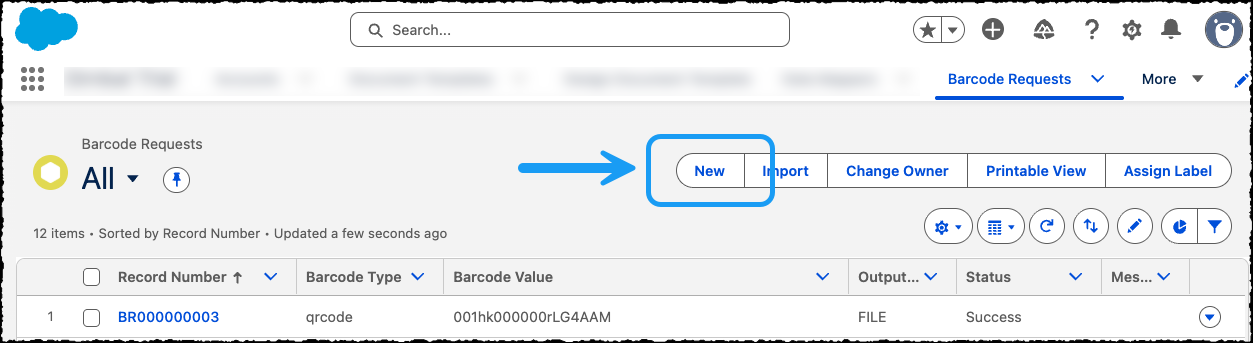
The Barcode Requests tab. Click New to start a request.
Populate the INPUT fields (Barcode Type and Barcode Value are required, and Output Type defaults to FILE if left blank; Extra Params, File Name, and Linked Record IDs are used as needed). The fields are described on How to generate a barcode or QR code image in Salesforce.
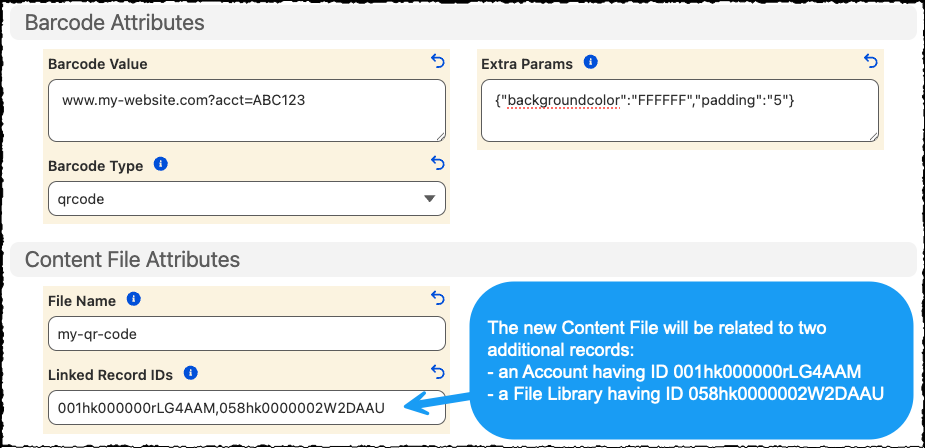
The INPUT fields filled in for a QR code.
Click Save.
Barcode generation happens asynchronously. Refresh the record after a moment to see the Status field change to Success (or Failure, with a Message explaining why).
The new Content Document will appear in the Files related list, and the ID of the new Content Document and the Content Version will be populated. (If an Output Type of BASE64 was selected, the Base64 field will become populated instead.)
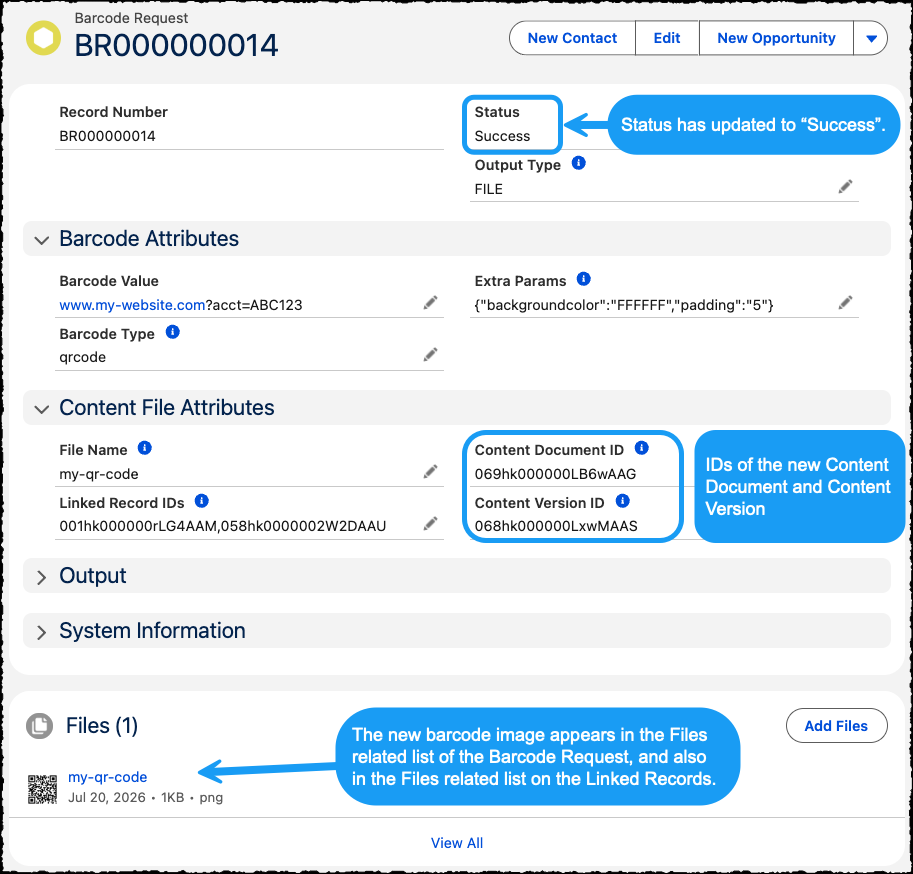
After saving: Status shows Success and the new image is in Files.
Example from the guide
| Field | Example value |
|---|---|
| Barcode Value | www.my-website.com?acct=ABC123 |
| Barcode Type | qrcode |
| Output Type | FILE |
| Extra Params | {"backgroundcolor":"FFFFFF","padding":"5"} |
| File Name | my-qr-code |
| Linked Record IDs | 001hk000000rLG4AAM,058hk0000002W2DAAU |
With these Linked Record IDs, the new Content File is related to two additional records: an Account having ID 001hk000000rLG4AAM, and a File Library having ID 058hk0000002W2DAAU.
When processing completes, the Status updates to "Success", the Content Document ID and Content Version ID fields show the IDs of the new Content Document and Content Version, and the new barcode image appears in the Files related list of the Barcode Request, and also in the Files related list on the Linked Records.
Related pages: Generate a barcode or QR code image | Create a barcode with Flow or Omniscript | Create a barcode with Apex
Start here | Full configuration guide (PDF, version 8.14) | Questions: barcode@gimballogic.com
Create barcode image files (about 3 minutes)