
How to create a barcode with Salesforce Flow or Omniscript
In order to generate barcodes from automation, insert a Barcode Request record declaratively, from a Flow or an Omniscript. Flow uses the standard "Create Records" element, and Omniscript uses a Data Mapper Post Action.
Steps for Flow
- In your flow, add the standard Create Records element.
- Set "How to set record field values" to Manually.
- Under "Create a Record of This Object", set the Object to Barcode Request.
- Under "Set Field Values for the Barcode Request", set the INPUT fields. Barcode Type and Barcode Value are required, and Output Type defaults to FILE if left blank; Extra Params, File Name, and Linked Record IDs are used as needed. The fields are described on How to generate a barcode or QR code image in Salesforce.
The example in the guide (a Screen Flow with one Create Records element, labeled "Create Barcode Request") sets these values:
| Field | Value |
|---|---|
| Barcode Type | qrcode |
| Barcode Value | recordId (a flow variable) |
| Extra Params | {"backgroundcolor":"FFFFFF","padding":"5"} |
| File Name | Barcode1b |
| Linked Record IDs | LinkedRecordIds (a flow variable) |
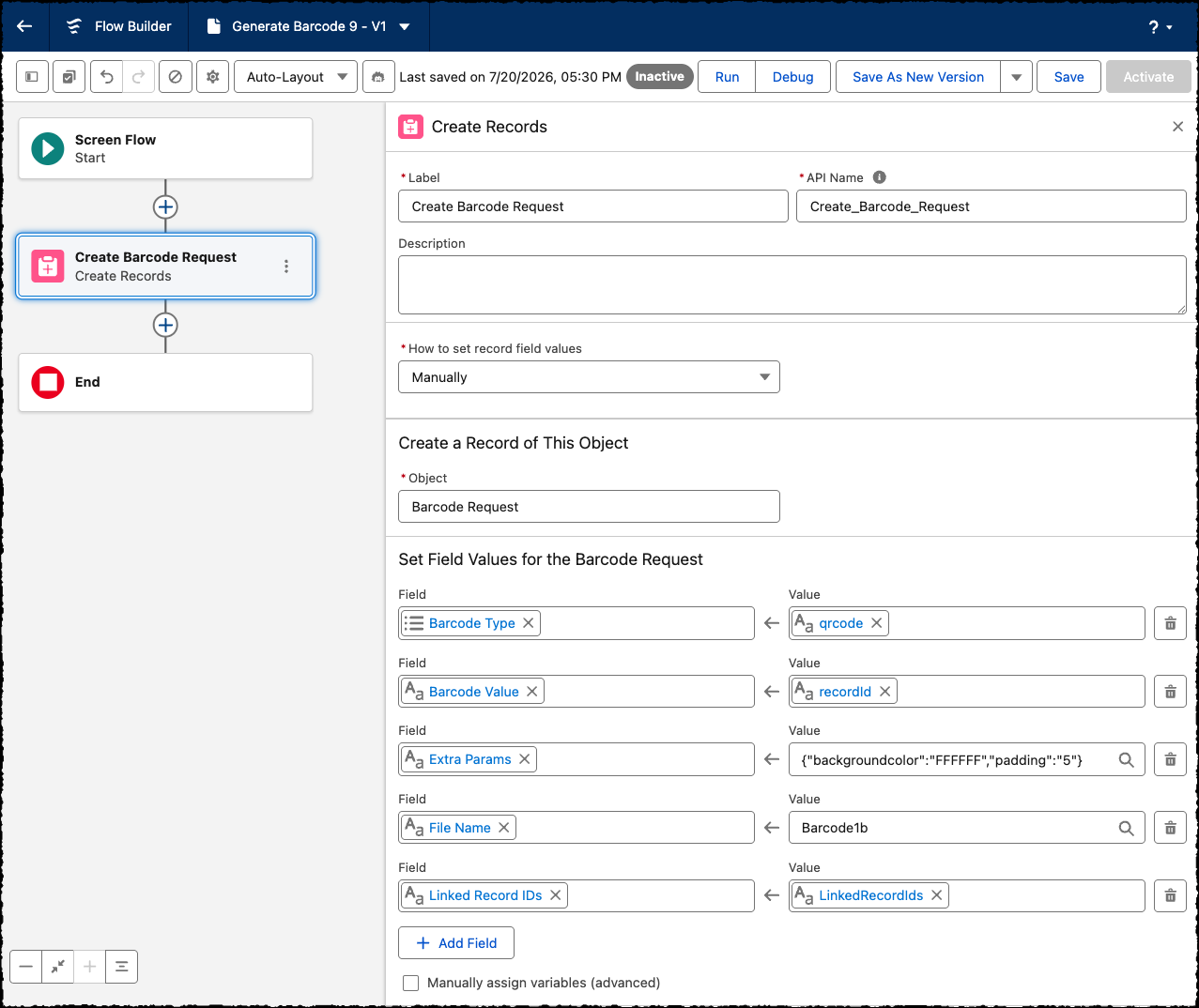
The Create Records element in Flow Builder, set up as in the table above.
Because barcode generation is asynchronous, a Barcode Request record created earlier in a Flow may not yet have its OUTPUT fields populated (and the new Content File may not have been created) by the next element in the same transaction. If your Flow needs the resulting File or Base64 image data, wait for the Status field of the Barcode Request record to change to "Success" before continuing.
Steps for Omniscript
- To create a barcode using Omniscript, use a Data Mapper Post Action to insert a Barcode Request record.
Related pages: Generate a barcode or QR code image | Create a barcode from the Barcode Request tab | Scan barcodes with Flow
Start here | Full configuration guide (PDF, version 8.14) | Questions: barcode@gimballogic.com
Create barcode image files (about 3 minutes)