
How to render a barcode on a Visualforce page
In order to render a barcode on a Visualforce page, it is not necessary to first create a barcode image. The barcode image can be rendered directly in the Visualforce page using the GMBLBC2:barcode Visualforce Component. This is particularly useful for generating labels for physical items, and it can also be used for workflow documents such as packing slips, and correspondence such as event invitations.
Steps
- Add the
GMBLBC2:barcodecomponent to your Visualforce page, with the value to encode and the barcode type (for example,type="qrcode"). - Launch the page from a button on the detail page of the record.
Example: a Product label
Here is an example of using Gimbal Barcode to generate a Product label (line 14 is the barcode component):
<apex:page applyHtmlTag="false" renderAs="pdf" showHeader="false" standardController="Product2">
    <head>
        <style type="text/css">
            @page {
                size: {!NULLVALUE($CurrentPage.parameters.pageSize, '4in 2in')};
                margin:0;
            }
        </style>
    </head>
    <body style="margin:0;">
        <div style="text-align:center; margin:3mm;">
            {!Product2.Name}
            <br/><br/>
            <GMBLBC2:barcode value="{!Product2.ProductCode}" type="qrcode"/>
            <br/><br/>
            {!Product2.ProductCode}
        </div>
    </body>
</apex:page>
When launched from a button on the detail page of a Product record, a 4" x 2" label will open for printing, with the Product name, a QR code of the Product Code, and the Product Code.
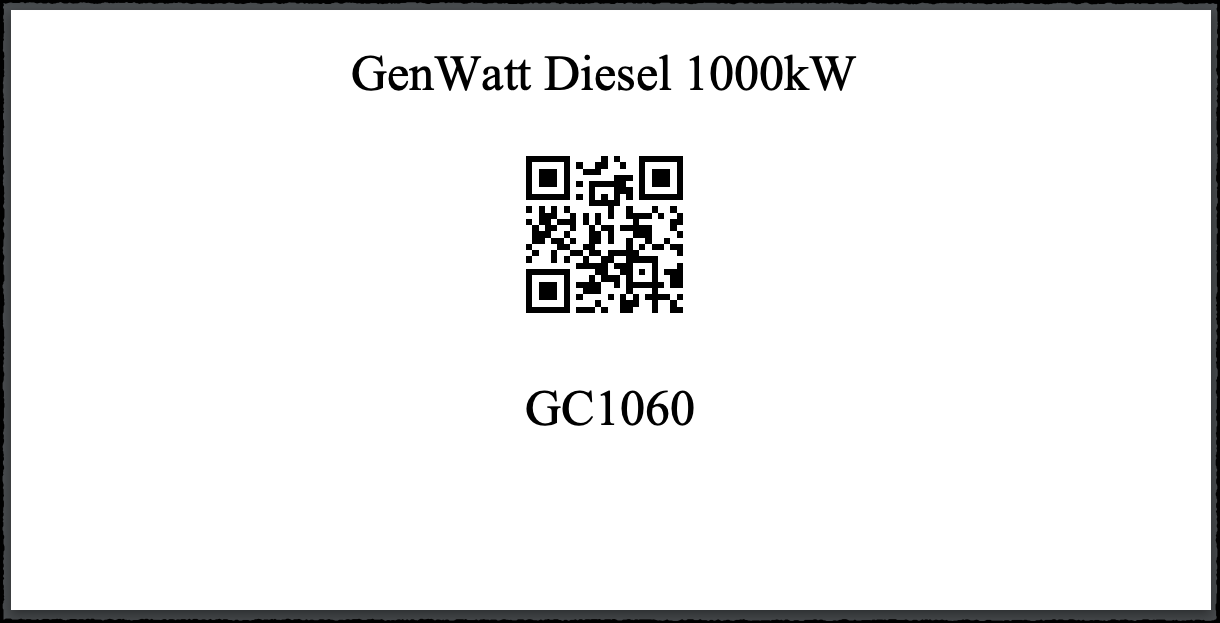
The printed 4" x 2" label.
The implementation team at Gimbal Barcode has experience with a wide variety of requirements for barcode label printing using Visualforce. Please don't hesitate to ask for our expert assistance. Contact us at barcode@gimballogic.com.
Related pages: Generate a barcode or QR code image | Create a barcode with Apex
Start here | Full configuration guide (PDF, version 8.14) | Questions: barcode@gimballogic.com